Showing posts with label on. Show all posts
Showing posts with label on. Show all posts
Sunday, November 23, 2014
Update Opera Mini web browser V 7 0 fastest browser on Android

Opera Mini web browser is still the mainstay of the gadget, especially for Android users. Navigation is lightweight and easy access to one of the reasons to choose a browser application.
Opera Mini web browser is the fastest browser in the world of android that can save you money on data.
For users Opera Mini web browser APP is still using the old version and want to update to new version, please update to the Opera Mini web browser Version 7.0.

Latest features Opera Mini web browser V 7.0 :
- Speed Dial shows you all of your favorite websites at a glance. Pull them up with one tap!
- Tabs let you keep multiple pages open and switch between them.
- Reading online is better with page sizes, address bars and toolbars that adjust automatically.
Download Opera Mini web browser V 7.0 free

Wednesday, November 12, 2014
Spigen set to sell cases for Apple iPhone 6 4 7 inches on Amazon

Case manufacturers have always played an important role in leaking looming smartphones design and other details pre an official release from the phone producers. And this time too we have one of the leading case maker, Spigen SGP, who had previously manifested the cases for both Samsung Galaxy S5 and HTC One 2014 (M8), here again showing-off some of the companys cases exclusively made for the upcoming purported Apple iPhone 6s 4.7-inches version.

Yesterday, Spigens Google+ account shared an interesting picture, tag-lining, "THERES SOMETHING IN THE AIR", also sharing a link to their new shipment awaiting ETA on Amazon. Fortunately, matching up our previous reports and the dummy units that surfaced, earlier for the Americans impending smartphones, now we see the handset mocked-up in official Press renders, falling in line with the previous leaks, featuring the thin and slim profile of Apples so-called next generation iPhone 6, which is yet to make its official debut from the Cupertino based manufacturer, in fall.
As aforementioned, Spigen posts the cases up for sale on the online retail store Amazon. The new cases from the SGP is dubbed as Spigen Slim Thin Fit Case for Apple iPhone 6. The newly unveiled products will be available in matte shades of Mint, Satin Silver and Smooth Black (seen above) color options, made out of premium polycarbonate with urethane based coating, that will prevent any kind of discoloration, finally completed in soft touch coating for a non-slip surface. The cases will be made available in stocks from 30th of September by Spigen and Amazon, where interested customers can now order the cases for 6.99 United States Dollars + $3.00 shipping charges.
Thanks to Spigen for once again confirming the design of Apples forthcoming device, as said in the past, the phone will have re-positioned sleep/wake button, placing it to the right side of the smartphone, unlike the current iPhones with power button on top edge. The change in placement of the specific button can come in handy when using the phone one-handed, as the new Apple iPhone 6s are speculated to arrive slightly bigger in size, one model being a 4.7-inched version and other one a 5.5-incher phablet. The SIM card tray slot placed below the power key. On the left, we see the firms traditional mute switch sitting above the redesigned volume up and down keys, which now attributes the same shape of an Apple manufactured iPod 5s volume rockers, sighting the long and narrow tabs instead of the circular ones seen from the present iPhone 5S smartphone. Lastly, from the back, the new case here makes room for a primary camera lens, secondary microphone and a dual-tone LED flash light.
Source: Spigen (Google+), amazon
Tattoos on teeth replace therapists
 At the present time, many tattoos are applied to the private parts, but the tattoos on the teeth do, probably, only the Japanese, who have more recently it has become fashionable. However, tattoo, designed by engineer Mike McAlpine (Mike McAlpine) Princeton University (USA), designed for entirely different purposes - drawing helps to detect the disease at its earliest stages, giving the owner an accurate diagnosis.In fact, the tattoo is a graphene sensor, which consists of a single layer of carbon atoms, which are plotted peptides, complex chemicals, which can detect bacteria. The sensor can be used by the military for the timely diagnosis of infection in wounds received on the battlefield and in hospitals to detect bacteria on different surfaces.Now McAlpine and his team are considering the possibility of commercialization of the project. However, they still have a lot of work. To start the guys have to reduce the sensors to fit your needs.Source: Ubergizmo.com
 Saturday, November 8, 2014
Play PS2 Games On PC With PCSX2 free full version
PCSX2 is an open-source PlayStation 2 emulator for the Windows operating systems, that allows to play all your Best PS2 games on PC . In its latest stable release, many PS2 games are playable, and several games have full functionality. The main bottleneck in PS2 emulation is emulating the multi-core PS2 on a PC x86 architecture.
Have a look at: How to Play Games without Graphic Card?
Features of PCSX2:
- Recompilers for Emotion Engine (EE), Vector Unit 0 (VU0) and Vector Unit 1 (VU1). They are used to translate some parts of the original PS2 machine code into x86 machine code, speeding up emulation.
- Dual core support allows PCSX2 to use up to 2 CPU cores speeding up the emulator significantly.
- Proper SPU2 emulation helps reproduce PS2 audio or even enhanced audio on the PC.
- Full gamepad support makes it possible to emulate every Dual Shock 2 feature.
- Patch system to create cheats easily. It can also be used to skip code where emulation is still broken. This feature is quite user-friendly and easy to use.
- Additional optimizations to speed up emulation. You will be able to play certain games on lower-end machines thanks to this feature.
- Fully working memcard support.
- Fully working IPU support responsible for FMV - video cutscenes should mostly run correctly.
- Dual core support allows PCSX2 to use up to 2 CPU cores speeding up the emulator significantly.
- Proper SPU2 emulation helps reproduce PS2 audio or even enhanced audio on the PC.
- Full gamepad support makes it possible to emulate every Dual Shock 2 feature.
- Patch system to create cheats easily. It can also be used to skip code where emulation is still broken. This feature is quite user-friendly and easy to use.
- Additional optimizations to speed up emulation. You will be able to play certain games on lower-end machines thanks to this feature.
- Fully working memcard support.
- Fully working IPU support responsible for FMV - video cutscenes should mostly run correctly.
Monday, October 13, 2014
How to Use App Backup on ASUS PadFone Infinity
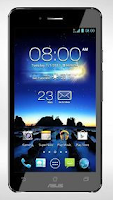
1. On the All apps Lcd, touch on App Backup.
2. Now accept the End User License Agreement.
3. After youve read the welcome message, touch Start to start using App Backup.
4. To back up your apps, tick the apps youd like to back up and determine a Backup Type whether to backup the app data only or both the app and app data.
5. Touch Backup on the upper right corner of the Lcd to start the backup.
6. To restore an app, just touch the Restore List to display the Restore List page.
7. Then touch a backup file you want to restore.
8. And touch OK on the confirmation page to start restoring an app.
Thursday, October 9, 2014
How to Turn On Wi Fi Direct on LG Optimus G Pro
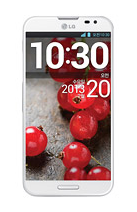
In case you dont know what is the use of the Wi-Fi Direct, Wi-Fi Direct will let your device connect directly to other devices that is also Wi-Fi enabled without an access point. You can directly transfer data between the devices connected to each other with reduced setup. Since the Wi-Fi Direct may consume a high battery usage, so it is recommended that you plug your phone into a power outlet while using it.
To turn On your Wi-Fi Direct:
To turn On your Wi-Fi Direct:
- Tap on the Home icon, then the Three Horizontal Line or Settings.
- Select System Settings, then More.
- Tap on Wi-Fi Direct. (A blue check will appear once activated.)
- If you want to create a group, then tap Create Group.
- If you want to search more devices, then tap Search.
How to Fix Error E16 on Canon MP258
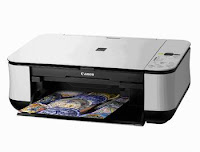 This time we will discuss Error E16 on Canon MP258 Printer. This incident may be quite confusing for those who have never experienced it.
 Early indications:
When the printer is turned on the LCD panel shows the numbers 1 and appears to be OK, but after the print command, then it will appear an error E16 on CanonMP258.
The following image is displayed on the monitor screen:
How to Fix Error E16 on Canon MP258 Printer as follows:
- If error E16 appeared with the image above, it means that the color cartridge need reset (experience the run out).
- Press the STOP/RESET button somewhat longer (5-15 sec) until the LCD panel rotates, then release.
- If the error appears again E13/16 black cartridge, it means also need reset (experience the run out), and the picture is as follow:

- Do the same: press the STOP/RESET LCD panel a little long to spin, then release.
- Finished, the error MP258 printer E16 will be normal again.
This often occurs when a cartridge is exhausted over refill then install again.
Good Luck
Sunday, October 5, 2014
Samsung Galaxy S5 on the Way to Sprint and T Mobile

The Samsung Galaxy S5 is highly anticipates handset, as CEO John Legere said "This thing is so hot weve already seen over a half a million pre-registrations for the Galaxy S5,"
Both carriers are offering the smartphone for $0 down. Customers of T-Mobile who pre-order by March 31 will get a "special introductory price" of 24 monthly payments of $27.50.
Both carriers are offering the smartphone for $0 down. Customers of T-Mobile who pre-order by March 31 will get a "special introductory price" of 24 monthly payments of $27.50.
For Sprint customers, you can sign on with the Easy Pay plan for monthly payments of $27.09 over the next two years. Otherwise, Sprint is charging $200 for the device with a new line or eligible upgrade, after a $50 mail-in rebate.
Heres Samsung Galaxy S5 Official Introduction
Heres Samsung Galaxy S5 Official Introduction
Saturday, October 4, 2014
How to Add Applications to the Homescreen on LG G Pro 2
By adding applications on your homeLcd, youre creating a hassle-free phone experience. Important apps or apps that you usually open are accessible if you put it right on your homeLcd instead of going thru lot of tapping and clicking. Now heres how you can add applications that you use most often on your LG G Pro 2 smartphone.To add shortcuts to apps or Widgets on the Home Lcd:
1 Select a location (Home Lcd canvas) to add an item by swiping the Home Lcd from left to right or vice versa.
2 Touch and hold an empty part of the Home Lcd.
3 Tap the type of item you want to add on the Lcd: Apps, Downloads, Widgets, or Wallpapers.
4 Tap the desired App or Widget.
5 You will see a new icon on the Home Lcd.
To place it on a different canvas, touch and hold it to drag it to the desired location and release your finger from the Lcd.
TIP: To add a preloaded application or an application you have downloaded from Play Store to the Home Lcd, simply touch and hold the icon you want in the Apps Lcd and drag it to the desired Home Lcd canvas.
Friday, October 3, 2014
How to Screen Mirror Sony Xperia Z to Show the Screen on a TV
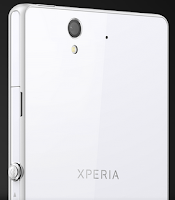
How to mirror the Lcd of your phone on a TV:
1. First you need to turn on the Lcd mirroring function on your TV. Just follow the instructions in the User Guide of your TV.
2. From your Home Lcd, tap on the Menu icon

3. Select on Settings, and tap Xperia™.
4. Choose Screen mirroring.
5. Tap to turn on the Screen mirroring and select a device.
Note: The TV that you want to connect with must support Lcd mirroring for the above described functionality to work. If it does not support, then you can try the Throw feature. Go to Settings > Throw feature.
How to Send a Multimedia Message and Create a Slideshow on HTC Desire U
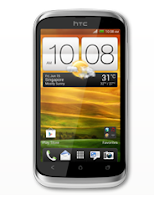
1. On your devices homeLcd, tap on
 and go to Messages.
2. Then tap on

3. On the To Field, key in a contact name, mobile number or email address. You can also send it to a group of friends by tapping on

4. To add a subject line, tap on
 and go to Add Subject.
5. Tap on the box that says Add text and there you can type in your special message.
6. Choose an attachment for your message by tapping on

7. After you browse and select an attachment, tap on Send or press
 to save it as a draft. You can also tap on
 to see options like replacing, viewing and removing your attachment.
Now if you wish your Mutimedia Message to reach an extra mile, you can have it on a slideshow format. Heres how you can create one:
once again and select Slide.2. Then choose where you want to insert the next slide.
3. When youre done adding the next slide, you can either do the following:
- tap onand choose to add a video or a photo
- tap onand then audio if you want to add a voice recording or a music to the slide
- tap on Add Text to add a caption
- tap onto view options like replacing, viewing or removing your attachment.
select Preview. If you dont see Preview, scroll down the menu. To view the playback controls, tap once the preview Lcd.5. When its all set and done, press on or tap on Send to save message as a draft.
or tap on Send to save message as a draft.Now you can make someones day a very special one with this creative and personalize MMS.
Wednesday, October 1, 2014
How to Take Continuous Camera Shots on HTC Butterfly

Follow these steps:
1. First, make sure that youre in Normal scene to use this feature.
2. On the Viewfinder Lcd, just press and hold on
 .
.- It should take 20 consecutive shots since it is the default settings.
- If you want to capture more than 20 shots, just tap on the Gear Icon or Settings, then Continuous shooting. After that, clear the Limit to 20 frames option.
3. You can also select the photo that you like most by tapping Best shot. If you dont want the other photos, then you can delete it.
Tuesday, September 30, 2014
How to Turn On Off Wi Fi on Alcatel One Touch 993D
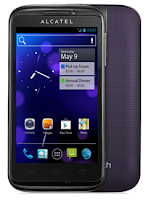
Follow these steps on how to connect to your wireless network:
• On your Home Lcd, tap on the Menu key.
• Select on Settings.
• You will see a Wi-Fi option, beside on the Wi-Fi, just switch whether on/off.
• Tap on Wi-Fi, there should a detailed information of detected wireless networks.
• Tap on the network you want to connect with.
• If the network is secured with a password, make sure to enter the password correctly.
• Then tap Save.
How to Setup an Email Account on Alcatel One Touch 993D
How to setup your an email, follow these steps:
• On your HomeLcd, touch on the Application tab.
• There should an email wizard that will guide you through process in setting up an email.
• Enter the email address and password of the account you want to set-up.
• Then tap Next. (You will be prompted to go to email account settings to enter settings manually, if the account is not provided by your service provider.)
• You can also tap on Manual setup to directly enter the incoming and outgoing settings for the email account you are setting up.
• Enter your preferred account name and display name in outgoing emails.
• If you want to add another email account, just tap on Menu key > Settings > Add Account on the right of the title to create.
Monday, September 29, 2014
How to Find the ESN on a phone HTC EVO
Find the ESN for your HTC EVO is a good idea if you need to reprogram the phone . The ESN or electronic serial number is a unique number that identifies mobile phones. The ESN is usually printed under the battery of the EVO , but you can find the number without the need to remove the battery cover of the phone and battery. The ESN is conveniently located in the phone settings.
Instructions
Read More..
Instructions
- Touch the "Menu" key on the HTC EVO and then tap the icon "Settings" .
- Scroll down to the last field and click " About phone " .
- Tap " Phone Identity " and review the information in the phone . The ESN MEID is the same number listed for the HTC EVO .
How to Set Up Voicemail on Huawei Ascend G615
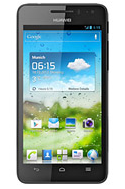
1. On your devices homeLcd touch
 and go to Settings.
2. Select Voicemail settings.
3. Tap on Voicemail number and enter your voicemail number.
4. Then tap on OK.
To listen to your voice messages, just press and hold the number 1 on the dialer and follow the instructions.
Sunday, September 28, 2014
How to Add Remove Resize Widgets and Shortcuts on Motorola Atrix HD
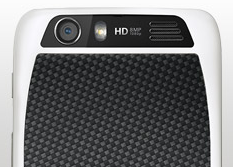
To add a Widgets and Shortcuts:
- Go to Apps.
- Tap and hold on the app or widget.
- Drag it to one of your home Lcd pages.
- If you want to see all your apps and widgets, swipe the app Lcd to the left.
- Or you may also tap Apps or Widgets at the top.
- If you want to see all your favorite apps, just tap on the Star icon or Favorites.
- Tap on Add/Remove to edit your favorite apps.
There are also app that include special widgets. If you want to download apps, just tap on Apps, then select Play Store.
To resize widgets:
- Some widgets are resizeable, simply tap and hold on a widget you want to resize until it vibrates.
- Then drage the blue diamonds at the edges to change the size.
To move or delete widgets and shortcuts:
- Tap and hold on a widget you want to delete/move until it vibrates.
- Then drag it to another spot/page, you simply Remove at the top of the Lcd.
How to Take Continuous Camera Shots on HTC Desire U
Follow these steps:
1. First, make sure that youre in Normal scene to use this feature.
2. On the Viewfinder Lcd, just press and hold on
.- It should take 20 consecutive shots since it is the default settings.
- If you want to capture more than 20 shots, just tap on the Gear Icon or Settings, then Continuous shooting. After that, clear the Limit to 20 frames option.
3. You can also select the photo that you like most by tapping Best shot. If you dont want the other photos, then you can delete it.
How to Add or Remove Widgets on Motorola Atrix 2
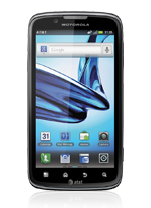
Adding Widgets on your HomeLcd will help you improve your productivity in using your Motorola Atrix 2. If you dont know what widgets means, Widgets are small applications that you can directly use on your HomeLcd. These will serve as your shortcut icon so will no longer need to access the Menu.
To add a Widgets:
There are also app that include special widgets. If you want to download apps, just tap on Apps, then select Play Store.
To move or delete widgets:
To add a Widgets:
- Go to Apps.
- Tap and hold on the widget.
- To change your wallpaper, tap and hold an empty spot on the home Lcd.
- You can also add a folder to organize your shortcuts.
There are also app that include special widgets. If you want to download apps, just tap on Apps, then select Play Store.
To move or delete widgets:
- Tap and hold on a widget you want to delete/move until it vibrates.
- Then drag it to another spot/page, or simply Remove at the top of the Lcd.
Friday, September 26, 2014
How to Turn on Mobile Bravia Engine on Sony Xperia Z
1. On your devices homeLcd, tap .
.
.2. Then find and tap Settings.
3. Go to Display.
4. And mark the Mobile BRAVIA Engine 2 checkbox if its not marked.
Now youre ready to view those captured moments in a clearer, sharper and more natural way.
Subscribe to:
Posts (Atom)