Wednesday, November 12, 2014
Spigen set to sell cases for Apple iPhone 6 4 7 inches on Amazon

Case manufacturers have always played an important role in leaking looming smartphones design and other details pre an official release from the phone producers. And this time too we have one of the leading case maker, Spigen SGP, who had previously manifested the cases for both Samsung Galaxy S5 and HTC One 2014 (M8), here again showing-off some of the companys cases exclusively made for the upcoming purported Apple iPhone 6s 4.7-inches version.

Yesterday, Spigens Google+ account shared an interesting picture, tag-lining, "THERES SOMETHING IN THE AIR", also sharing a link to their new shipment awaiting ETA on Amazon. Fortunately, matching up our previous reports and the dummy units that surfaced, earlier for the Americans impending smartphones, now we see the handset mocked-up in official Press renders, falling in line with the previous leaks, featuring the thin and slim profile of Apples so-called next generation iPhone 6, which is yet to make its official debut from the Cupertino based manufacturer, in fall.
As aforementioned, Spigen posts the cases up for sale on the online retail store Amazon. The new cases from the SGP is dubbed as Spigen Slim Thin Fit Case for Apple iPhone 6. The newly unveiled products will be available in matte shades of Mint, Satin Silver and Smooth Black (seen above) color options, made out of premium polycarbonate with urethane based coating, that will prevent any kind of discoloration, finally completed in soft touch coating for a non-slip surface. The cases will be made available in stocks from 30th of September by Spigen and Amazon, where interested customers can now order the cases for 6.99 United States Dollars + $3.00 shipping charges.
Thanks to Spigen for once again confirming the design of Apples forthcoming device, as said in the past, the phone will have re-positioned sleep/wake button, placing it to the right side of the smartphone, unlike the current iPhones with power button on top edge. The change in placement of the specific button can come in handy when using the phone one-handed, as the new Apple iPhone 6s are speculated to arrive slightly bigger in size, one model being a 4.7-inched version and other one a 5.5-incher phablet. The SIM card tray slot placed below the power key. On the left, we see the firms traditional mute switch sitting above the redesigned volume up and down keys, which now attributes the same shape of an Apple manufactured iPod 5s volume rockers, sighting the long and narrow tabs instead of the circular ones seen from the present iPhone 5S smartphone. Lastly, from the back, the new case here makes room for a primary camera lens, secondary microphone and a dual-tone LED flash light.
Source: Spigen (Google+), amazon

Wednesday, November 5, 2014
RDSL Remote DSL How to set it up
RDSL
How to setup RDSL or "Remote DSL"
First of all youll need a spare computer and a spare DSL line. These will need to be dedicated solely for your customers use. This means youll need a different computer and internet access for your personal use. Most cities have both DSL and cable modem service available, so get both.
Youll need to get your own DSL modem. The preferred models are the Motorola 2210 (approximately $80 USD) and the Actiontec GT701D (approximately $50 USD).
Some technical info:
When they install your DSL line, they create a name (email address) and password. This is stored in your DSL modem, and thats how it is granted access to the DSL line. This is knows as PPPoE. Later in this article Ill show you how to move the name and password to your computer, instead of on the modem. That way when you want to change the IP address, you simply run a script file that tells Windows to drop the connection, then dial it again. More on this later.
Here are the steps to setup the dedicated computer:
1. Install Teamviewer. Its free for personal use. After you install it send your client the Session ID and password.
2. Put the DSL modem in bridged mode. See the modems user manual for instructions. Click on the links I have provided above to view the manuals.
3. Create a PPPoE network connection under Windows XP. Click here for instrucions. The first time you connect the PPPoE connection you have the option to create a desktop shortcut, and to save the password. Check both.
4. Create a batch file named "ChangeIP.cmd" on the desktop. This is what your client will use to rotate the IP addresses. Also copy this to the following folder: "C:documents and settingsAll UsersStart MenuProgramsStartup"
Here are the contents of the batch file:
rasdial networkname /DISCONNECT
netsh interface ip delete arpcache
PING 1.1.1.1 -n 1 -w 6000 > NUL
rasdial networkname emailaddress password
Definitions:
networkname - the name of the PPPoE connection. More is explained below
emailaddress - The email account created when they installed your DSL line
password - the password associated with the above email address
For example: If your DSL provider is AT&T they will create an email like "john_doe@sbcglobal.net" when you create the PPPoE connection as described below, you would name the network "ATT" or similar, and use john_doe@sbcglobal.net as the username and the proper password to connect.
You can advertise your services for free on http://dsl4rent.com. You can also do a Google search for "remote DSL" and find lots of people who are looking to rent your computer. Also you can shoot me an e-mail and Ill do my best to refer you some customers.
Monday, October 13, 2014
How to Set HTC Desire 816 into Sleep Mode
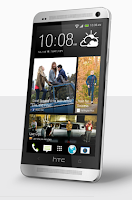 Like any other device, setting HTC Desire 816 into sleep mode will somehow save its battery life. Sleep mode puts your device into a lower power state while the display is off. It also prevents accidental button presses when its in your pocket or bag.
Heres how you can set HTC Desire 816 into sleep mode:
1. Briefly press on your devices Power button to turn off the display. Then switch to Sleep Mode.
2. To change the time before your device sleeps, just go to Display & buttons settings.
3. To wake it up, manually press the Power button and unlock your Lcd.
4. Your device will also automatically wakes up when you have an incoming call.
How to Extend Battery Life of HTC Desire 816
Monday, September 29, 2014
How to Set Up Voicemail on Huawei Ascend G615
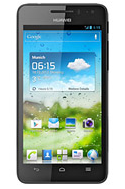
1. On your devices homeLcd touch
 and go to Settings.
2. Select Voicemail settings.
3. Tap on Voicemail number and enter your voicemail number.
4. Then tap on OK.
To listen to your voice messages, just press and hold the number 1 on the dialer and follow the instructions.
Thursday, September 25, 2014
How to Set HTC Desire SV into Sleep Mode

1. Briefly press on your devices Power button to turn off the display. Then switch to Sleep Mode.
2. To change the time before your device sleeps, just go to Display, then gestures & buttons settings.
3. To wake it up, manually press the Power button and unlock your Lcd.
4. Your device will also automatically wakes up when you have an incoming call.