Showing posts with label Shortcuts. Show all posts
Showing posts with label Shortcuts. Show all posts
Sunday, October 26, 2014
How to find shortcuts in Windows 8
Windows 8 had come out with a bunch of new features and interfaces, but most of the people were disappointed when it leaves the classic Start button, many found it bit more uncomfortable to go through the start screen every time they need a programme to be run. But gradually people are started loving it
and I am the one of those. As I have already said that peoples have lots of issues with Windows 8, specially while its used by new users. Recently I have come across a shortcut issue, which I am going to discuss here. In this tutorial I will discuss the process of showing My Computer and My Document shorcuts on the Desktop.
What to do
You have to follow the following steps to bring the above mentioned shortcuts to your Desktop. Its really very simple.
1) Go to the Desktop
2) Right Click and go to Personalize
3) Click on Change desktop icons
4) Then select your required shortcuts from the available options (You can take the help of following screen shot)

If you get any problem while creating the shortcuts, you can contact me.
and I am the one of those. As I have already said that peoples have lots of issues with Windows 8, specially while its used by new users. Recently I have come across a shortcut issue, which I am going to discuss here. In this tutorial I will discuss the process of showing My Computer and My Document shorcuts on the Desktop.
What to do
You have to follow the following steps to bring the above mentioned shortcuts to your Desktop. Its really very simple.
1) Go to the Desktop
2) Right Click and go to Personalize
3) Click on Change desktop icons
4) Then select your required shortcuts from the available options (You can take the help of following screen shot)
If you get any problem while creating the shortcuts, you can contact me.

Sunday, September 28, 2014
How to Add Remove Resize Widgets and Shortcuts on Motorola Atrix HD
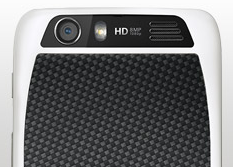
To add a Widgets and Shortcuts:
- Go to Apps.
- Tap and hold on the app or widget.
- Drag it to one of your home Lcd pages.
- If you want to see all your apps and widgets, swipe the app Lcd to the left.
- Or you may also tap Apps or Widgets at the top.
- If you want to see all your favorite apps, just tap on the Star icon or Favorites.
- Tap on Add/Remove to edit your favorite apps.
There are also app that include special widgets. If you want to download apps, just tap on Apps, then select Play Store.
To resize widgets:
- Some widgets are resizeable, simply tap and hold on a widget you want to resize until it vibrates.
- Then drage the blue diamonds at the edges to change the size.
To move or delete widgets and shortcuts:
- Tap and hold on a widget you want to delete/move until it vibrates.
- Then drag it to another spot/page, you simply Remove at the top of the Lcd.
Subscribe to:
Posts (Atom)