Showing posts with label windows. Show all posts
Showing posts with label windows. Show all posts
Tuesday, November 11, 2014
iOS 7 vs Android Jelly Bean vs Windows Phone 8 vs BB10
The battle for dominance of the smartphone world is one that has been raging for a few years. With the migration of consumers from feature phones to modern wonders such as the iPhone 5 and the HTC One, or even the cheap as chips offerings like the Nokia Lumia 520 or Huawei Ascend G330, it is clear where the money, and the future lies.

Weve seen some impressive hardware come and go, quad-cores grace most flagship devices (i.e. Sony Xperia Z or HTC One) and there is even the quad/octa core that sits inside the Samsung Galaxy S4, dependent on your location.
Needless to say, all the big guns in the tech industry have some level of input into the mobile OS world. Apple has iOS (just about to reach iOS 7), Google has Android, the most recent version being 4.2 Jelly Bean, Microsoft has Windows Phone 8, leaving BlackBerry with its hopes pinned on BB10.
Users familiar with previous iOS versions may be in for a bit of a shock, with elements such as the lock screen taking a new look. Elements now seem more rounded, and much brighter than before. On the face of it, things seem very different with iOS 7, but the real changes go deeper.
Android is currently sitting at version 4.2, which is another iteration of the popular Jelly Bean OS. Jelly Bean built upon the work done by 4.0 Ice Cream Sandwich, with everything being much smoother with Project Butter, and the introduction of Google Now.
Pretty much every OEM has placed a skin over the top of Android, take a look at HTCs Sense, Samsungs Touchwiz or Huaweis Emotion UI.
That said, nigh on every version builds on the use of multiple home screens populated with widgets, and apps being kept tidy in a drawer.
Microsofts offering bases itself around a system of LiveTiles. These are used in a similar way to widgets on Android, providing information at a quick glance. Users of Windows Phone 7, or Windows 8 on tablets or desktops will feel right at home.
In terms of user customisation, much like iOS, Windows Phone 8 is relatively closed. Live Tiles can be resized, so that more important tiles can take up more screen real estate, and the tile colour can be any of 20 variations. It is also possible to change the lock screen, to bring up photos, or widgets and notifications.
Out of Canada comes BB10, with BlackBerry pinning pretty much all its hopes on the OS. In a similar way to Windows Phone 8, BB 10 allows 8 Active Frames, of which only 4 are visible at one time.
These show the most recent apps used, as well as any information that app may offer, be it weather or calendar events.
Being a totally different OS to prior BlackBerry OS iterations, BB10 is at first a little confusing to use.
Closing apps by running your finger up from the bottom of the screen feeling a little unnatural.
The BlackBerry 10 lock screen comes complete with notifications, calendar events and ability to quick launch the camera.
iOS 7 brings in a raft of changes to the camera app. There isnt a whole load of changes deep down, these being limited more to photo effects; varying lens shapes and live photo filters giving you the Instagram look, without having to use the app. Elsewhere, the interface has become more swipe-friendly.
The Gallery app has also had a few tweaks, meaning that photos are arranged by location, being titled moments. Pinching to zoom will re-draw your library, highlighting days out or holidays. Pinching further shows an overview of the years photos, complete with location tags.
Androids camera app is one that gets a lick of paint with each UI that is placed over the top. Also, with the incredible variation in Android devices, each camera is different, the HTC One being most notable for camera tech with UltraPixel and HTC Zoe, or there is Samsung with Burst Mode found on the Galaxy S3 or S4.
That said, there is an underlying theme that graces Androids camera and gallery app. Photo filters are common place, even the basic Android devices offer Sepia, Monochrome and Negative effects. Gallery apps are a little more varied, however most can pull down images from the cloud, from Picasa/Google+ web albums, with some going so far as Facebook albums too.
Being a unified OS across all devices, Windows Phone 8 camera settings are common. Pinch to zoom has been brought in, and the ability to take photos by tapping the screen making the app feel a little more natural. There is also the idea of lenses, that allow you to use camera tools that you have downloaded, rather than via a separate app.
BlackBerry was keen to show off their camera at the BB10 launch. The reason for this is something that the Canadians are terming Time Shift. This is a nifty piece of tech that, if selected, allows you to go back in time to find the perfect smile. It even works on multiple faces, however needs good lighting.
BB10s other features include standard scene and shooting modes, as well as the ability to use the volume keys as a shutter button.
iOS 7 now incorporates your iCloud stored media, allowing you to see all your tracks in one place, with a wall of album art in Landscape mode adding a nice look to things.
The biggest revolution it brings is iTunes Radio, Apples much rumoured and talked about music streaming service, previously dubbed iRadio. We are unable to comment on the exact release, with availability confirmed for this fall in the US, with the rest of the world left waiting for news. We can say that there will be both a free (ad-funded) and premium service, though.
As for apps, Apples App Store is by far the most famous of all app stores/markets across all OS. iOS7 brings in some updates, such as being able to search for apps based on age range, or the Apps near me feature, which shows you the most popular apps in your location. Apps can also update in the background.
Storing all this media, and all your apps is done in true Apple fashion, with varying sizes of internal storage available. MicroSD is still unsupported, although we never expected, nor ever expect that to change.
Playing catch up in the media department, Google has launched its Play Books, Play Magazines, Play Movies and Play Music apps. Whilst nowhere near as popular as the iTunes version, media downloading is now a lot easier on Android devices.
Downloading apps is also very easy, as Googles rebranded Play Store has become a very attractive and very functional marketplace, with different sections and lists of apps for you to peruse. Auto updating is available, and disable-able too.
The Windows Phone 8 and BlackBerry app stores are far less populated in comparison to both the Google and Apple offerings, although we would be doing them a disservice by calling their offerings sparse (BB10 has 120,000 apps compared to iOS 900,000), especially given that the Microsoft OS has Xbox compatibility.
Since Android 2.2 Froyo, apps to microSD has been a standard feature, alongside its long supported media storage feature. App installation on microSD is also supported via Windows Phone 8, with standard microSD support also being available in BB10.
NFC wasnt something that wasnt explicitly mentioned with the launch of iOS7. Until now, previous iOS devices havent come with NFC chips. We could look into this and say things about upcoming iOS touting devices, such as the unlikelihood of NFC inclusion, with the claim that theres No need to wander around the room bumping your phone with others. That said, apps will be able to share information via Airdrop, provided that it supports Share Sheet.
Android has supported NFC for a while. Android Beam has been used on devices to share data since Android 4.0 Ice Cream Sandwich. Certain manufacturers have taken it a little further, with Samsung adding its S title to create S Beam. Googles wallet application is also likely to make use of NFC as mobile payment becomes increasingly popular.
Windows Phone 8 also packs in NFC support, with its very own Microsoft Wallet app to rival Googles version, and BlackBerry has long had NFC in its handsets so its no surprise BB10 also makes use of the technology.
iOS 7 makes a big deal out of both notifications and Control. The notifications centre that was accessed by swiping down from the top has become a full-screen affair, also available via the lock screen.
The Control Centre is where the real innovation lies, however. Previous iOS versions had a very basic centre, however now quick settings such as Wi-Fi and Bluetooth can be enabled or disabled, as well as controlling screen brightness, music being played, and access to AirDrop and AirPlay controls.
Android has had its notifications bar longer than Apple, so it has come on in leaps and bounds. Jelly Bean also brings in expandable notifications, showing more information about the top event, as well as being able to swipe to dismiss.
Many custom UIs include access to the quick settings (Touchwiz has gotten this nigh on perfect) in the notifications bar. Android also include a Power Control widget that can be placed on home screens, giving quick access to a lot of important settings.
Notifications arent something that ever made it over to Windows Phone 8, however there are strong suggestions that there is a notifications centre making it over in Windows Phone 8.1. Notifications are viewable from the lock screen.
With BB10, there is a dedicated Notifications hub, accessed by swiping from the left hand side of the screen, as well as notifications that can be seen for individual apps such as Email, Texts or social networks.
There has been no such problems for mapping on Android, given that Google has managed to port across its Google Maps desktop browser application so successfully.
Google maps provides one of the most comprehensive mapping apps available, as well as being able to provide information through its Local app, and sat-navving via the Navigation app. Googles recent acquisition of Waze is going to throw in user based traffic updates as well.
Microsoft has also got a decent map app. Bing maps brings over many features that were prevalent throughout Nokia phones of old, including Nokias turn-by-turn directions from Nokia Drive. Other useful features include downloading maps for offline use, pinning favourite locations and Local Scout (similar to Googles Local).
BB10 provides a basic mapping option as well, covering turn-by-turn and traffic updates. The app is a fairly basic affair, with fewer features than the other options available on other devices.
Bookmarks now sit on the home screen, drawing in data from your Twitter feed. Tabbing is no longer limited to 8, and is synchronised across multiple Apple devices through iCloud.
Since Ice Cream Sandwich, Google has mobilised its Chrome browser, which now interestingly sits alongside the native Android Internet app. Weve not understood why both browsers are run side by side, but it provides a little choice. Google bookmarks can be synced across, and incognito browsing is available too.
Internet Explorer is available on Windows Phone 8 devices, with the version being nearly identical to IE10, even if it looks a little different. Internet Explorer is a very accomplished mobile browser overall, and comes with the Do Not Track feature by default, as well as SmartScreen phishing protection.
BB10s browser is a minimalist design, with the URL at the bottom of the page, akin to IE on Windows Phone 8. BB10 does pack in some useful features, such as a Reader mode that lifts text and images, making it more readable. We also found that the BB10 browser was lightning fast, which is a major tick in anybodys book.
Googles multi-tasking has been handled for a long time through the long press of the home button, if the device has one, or through the dedicated button on total touch screen devices. This brings up a quick window of what was last on the app whilst you were using it, and can be swiped to dismiss.
Windows Phone 8 has a similar method of bringing up its multi-tasking window. Long pressing the back button brings up the multi-tasking screen, allowing users to flick across to the app they wish to use.
RIM have implemented a multi-tasking action, which is vaguely reminiscent of cards on WebOS. The Canadians call this Cascades, accessed by swiping left to right. BB10 also uses the multi-tasking screen on the home page we mentioned earlier, that gives access to your eight most recently used apps, shown four at a time.
Android Jelly Bean has been around for two years now, available on devices from multiple OEMs, and with devices now being launched 4.1 or 4.2. There is a lot of talk of Android 4.3 Jelly Bean also being released at some point this year, and rumours of the Key Lime Pie (Android 5.x) also being launched this year.
It is available on the highest end devices, from a variety of OEMs, such as the five star HTC One, and at the bottom end of the market on devices such as the LG Optimus L3 2.
Windows Phone 8 is also available on devices from different OEMs, with Nokia Lumia devices being the most talked about. HTC, Samsung and Huawei also have their own devices out and about.
Talk of Windows Phone Blue, or 8.1 has also been bandied about, with an expected release alongside Windows 8.1. Current devices span the market, again from a variety of OEMs, with the high end Nokia Lumia 925, or the low end Lumia 520.
BB10 is unavailable on all new BlackBerry devices, the BlackBerry Z10, Q10 and Q5. Being a whole new OS, it is unavailable on previous BB7 toting devices.
As for BB10 on the PlayBook, your guess is as good as our at this point, with BlackBerrys 2012 annual conference stating that it would make its way across, although 12 months later, there is still no update. Being an all new OS, BB10 is now available on the BlackBerry Z10, BlackBerry Q10 and announced BlackBerry Q5.
A number of previous devices (iPhone 4, 4S, 5, iPad 2, 3, 4, iPad Mini and iPod Touch 5th generation) will be getting the update, with the OS also being a major precursor to the upcoming iPhone 5S/6, iPad 5 and iPad Mini 2.
Apple therefore has a very large existing customer base ready to upgrade, with those on earlier iDevices also potentially looking to the launches of the next line of products. iOS is also highly successful in the business market, as well as the personal market.
It is therefore almost impossible to say that iOS7 will be a flop, after all the trouble that Apple maps gave iOS6, it is still very popular. Android is Apples biggest worry, with Windows Phone 8 and BB10 making strides through the mobile market, yet still not as firmly established.
Android handsets are still the most popular on a world wide scale, but only just over a third are actually running Jelly Bean, with the fragmentation the major negative point against what is a highly versatile platform.
Read More..
Weve seen some impressive hardware come and go, quad-cores grace most flagship devices (i.e. Sony Xperia Z or HTC One) and there is even the quad/octa core that sits inside the Samsung Galaxy S4, dependent on your location.
Needless to say, all the big guns in the tech industry have some level of input into the mobile OS world. Apple has iOS (just about to reach iOS 7), Google has Android, the most recent version being 4.2 Jelly Bean, Microsoft has Windows Phone 8, leaving BlackBerry with its hopes pinned on BB10.
Interface
The iOS 7 interface is a radical new look compared with previous iterations. Although with a clean and modern new look, the formula based upon simplicity is one that has been stuck to. Icons have had an overhaul, and there is transparency through apps, giving iOS devices a more unified feel.Users familiar with previous iOS versions may be in for a bit of a shock, with elements such as the lock screen taking a new look. Elements now seem more rounded, and much brighter than before. On the face of it, things seem very different with iOS 7, but the real changes go deeper.
Android is currently sitting at version 4.2, which is another iteration of the popular Jelly Bean OS. Jelly Bean built upon the work done by 4.0 Ice Cream Sandwich, with everything being much smoother with Project Butter, and the introduction of Google Now.
Pretty much every OEM has placed a skin over the top of Android, take a look at HTCs Sense, Samsungs Touchwiz or Huaweis Emotion UI.
That said, nigh on every version builds on the use of multiple home screens populated with widgets, and apps being kept tidy in a drawer.
Microsofts offering bases itself around a system of LiveTiles. These are used in a similar way to widgets on Android, providing information at a quick glance. Users of Windows Phone 7, or Windows 8 on tablets or desktops will feel right at home.
In terms of user customisation, much like iOS, Windows Phone 8 is relatively closed. Live Tiles can be resized, so that more important tiles can take up more screen real estate, and the tile colour can be any of 20 variations. It is also possible to change the lock screen, to bring up photos, or widgets and notifications.
Out of Canada comes BB10, with BlackBerry pinning pretty much all its hopes on the OS. In a similar way to Windows Phone 8, BB 10 allows 8 Active Frames, of which only 4 are visible at one time.
These show the most recent apps used, as well as any information that app may offer, be it weather or calendar events.
Being a totally different OS to prior BlackBerry OS iterations, BB10 is at first a little confusing to use.
Closing apps by running your finger up from the bottom of the screen feeling a little unnatural.
The BlackBerry 10 lock screen comes complete with notifications, calendar events and ability to quick launch the camera.
Camera
With the Camera app being one of the most widely used features on the modern smartphone, it is only natural that every OS has given the camera a certain level of attention. One feature we are very fond of, that appears on iOS 7, pretty much every Android UI and BB10 is the ability to launch the app directly from the lock screen.iOS 7 brings in a raft of changes to the camera app. There isnt a whole load of changes deep down, these being limited more to photo effects; varying lens shapes and live photo filters giving you the Instagram look, without having to use the app. Elsewhere, the interface has become more swipe-friendly.
The Gallery app has also had a few tweaks, meaning that photos are arranged by location, being titled moments. Pinching to zoom will re-draw your library, highlighting days out or holidays. Pinching further shows an overview of the years photos, complete with location tags.
Androids camera app is one that gets a lick of paint with each UI that is placed over the top. Also, with the incredible variation in Android devices, each camera is different, the HTC One being most notable for camera tech with UltraPixel and HTC Zoe, or there is Samsung with Burst Mode found on the Galaxy S3 or S4.
That said, there is an underlying theme that graces Androids camera and gallery app. Photo filters are common place, even the basic Android devices offer Sepia, Monochrome and Negative effects. Gallery apps are a little more varied, however most can pull down images from the cloud, from Picasa/Google+ web albums, with some going so far as Facebook albums too.
Being a unified OS across all devices, Windows Phone 8 camera settings are common. Pinch to zoom has been brought in, and the ability to take photos by tapping the screen making the app feel a little more natural. There is also the idea of lenses, that allow you to use camera tools that you have downloaded, rather than via a separate app.
BlackBerry was keen to show off their camera at the BB10 launch. The reason for this is something that the Canadians are terming Time Shift. This is a nifty piece of tech that, if selected, allows you to go back in time to find the perfect smile. It even works on multiple faces, however needs good lighting.
BB10s other features include standard scene and shooting modes, as well as the ability to use the volume keys as a shutter button.
Media, Apps and Storage
The original iPhone launch in 2007 put media on phones very much back in the spotlight. iOS7 continues that, given that it will be available on the 5th gen iPod Touch, as well as later iPad versions.iOS 7 now incorporates your iCloud stored media, allowing you to see all your tracks in one place, with a wall of album art in Landscape mode adding a nice look to things.
The biggest revolution it brings is iTunes Radio, Apples much rumoured and talked about music streaming service, previously dubbed iRadio. We are unable to comment on the exact release, with availability confirmed for this fall in the US, with the rest of the world left waiting for news. We can say that there will be both a free (ad-funded) and premium service, though.
As for apps, Apples App Store is by far the most famous of all app stores/markets across all OS. iOS7 brings in some updates, such as being able to search for apps based on age range, or the Apps near me feature, which shows you the most popular apps in your location. Apps can also update in the background.
Storing all this media, and all your apps is done in true Apple fashion, with varying sizes of internal storage available. MicroSD is still unsupported, although we never expected, nor ever expect that to change.
Playing catch up in the media department, Google has launched its Play Books, Play Magazines, Play Movies and Play Music apps. Whilst nowhere near as popular as the iTunes version, media downloading is now a lot easier on Android devices.
Downloading apps is also very easy, as Googles rebranded Play Store has become a very attractive and very functional marketplace, with different sections and lists of apps for you to peruse. Auto updating is available, and disable-able too.
The Windows Phone 8 and BlackBerry app stores are far less populated in comparison to both the Google and Apple offerings, although we would be doing them a disservice by calling their offerings sparse (BB10 has 120,000 apps compared to iOS 900,000), especially given that the Microsoft OS has Xbox compatibility.
Since Android 2.2 Froyo, apps to microSD has been a standard feature, alongside its long supported media storage feature. App installation on microSD is also supported via Windows Phone 8, with standard microSD support also being available in BB10.
NFC
With NFC slowly becoming more prevalent across devices, it has been noticed on the lower end handsets that we have reviewed (LG Optimus L5 2, Huawei Ascend G510, Samsung Galaxy Fame to name but a few), OS support is vital.NFC wasnt something that wasnt explicitly mentioned with the launch of iOS7. Until now, previous iOS devices havent come with NFC chips. We could look into this and say things about upcoming iOS touting devices, such as the unlikelihood of NFC inclusion, with the claim that theres No need to wander around the room bumping your phone with others. That said, apps will be able to share information via Airdrop, provided that it supports Share Sheet.
Android has supported NFC for a while. Android Beam has been used on devices to share data since Android 4.0 Ice Cream Sandwich. Certain manufacturers have taken it a little further, with Samsung adding its S title to create S Beam. Googles wallet application is also likely to make use of NFC as mobile payment becomes increasingly popular.
Windows Phone 8 also packs in NFC support, with its very own Microsoft Wallet app to rival Googles version, and BlackBerry has long had NFC in its handsets so its no surprise BB10 also makes use of the technology.
Notifications and Control
Notifications are something that are very important across devices, giving quick access to Calendar events, Emails and Text messages. Device control is equally important.iOS 7 makes a big deal out of both notifications and Control. The notifications centre that was accessed by swiping down from the top has become a full-screen affair, also available via the lock screen.
The Control Centre is where the real innovation lies, however. Previous iOS versions had a very basic centre, however now quick settings such as Wi-Fi and Bluetooth can be enabled or disabled, as well as controlling screen brightness, music being played, and access to AirDrop and AirPlay controls.
Android has had its notifications bar longer than Apple, so it has come on in leaps and bounds. Jelly Bean also brings in expandable notifications, showing more information about the top event, as well as being able to swipe to dismiss.
Many custom UIs include access to the quick settings (Touchwiz has gotten this nigh on perfect) in the notifications bar. Android also include a Power Control widget that can be placed on home screens, giving quick access to a lot of important settings.
Notifications arent something that ever made it over to Windows Phone 8, however there are strong suggestions that there is a notifications centre making it over in Windows Phone 8.1. Notifications are viewable from the lock screen.
With BB10, there is a dedicated Notifications hub, accessed by swiping from the left hand side of the screen, as well as notifications that can be seen for individual apps such as Email, Texts or social networks.
Maps
Given the kerfuffle surrounding the launch of iOS Maps on iOS 6, there was a disappointing lack of map based announcements with iOS7, although developers have been making great improvements to Maps, which will bring features such as being able to push mapping info from a Mac of MacBook to an iDevice.There has been no such problems for mapping on Android, given that Google has managed to port across its Google Maps desktop browser application so successfully.
Google maps provides one of the most comprehensive mapping apps available, as well as being able to provide information through its Local app, and sat-navving via the Navigation app. Googles recent acquisition of Waze is going to throw in user based traffic updates as well.
Microsoft has also got a decent map app. Bing maps brings over many features that were prevalent throughout Nokia phones of old, including Nokias turn-by-turn directions from Nokia Drive. Other useful features include downloading maps for offline use, pinning favourite locations and Local Scout (similar to Googles Local).
BB10 provides a basic mapping option as well, covering turn-by-turn and traffic updates. The app is a fairly basic affair, with fewer features than the other options available on other devices.
Browser
You would expect, given that it was the key to revolutionising mobile browsing, that Safari on iOS7 would be important. You wouldnt be wrong. The URL bar is now resizable, you can swipe through the history, and the bookmarks and tabs have had an overhaul.Bookmarks now sit on the home screen, drawing in data from your Twitter feed. Tabbing is no longer limited to 8, and is synchronised across multiple Apple devices through iCloud.
Since Ice Cream Sandwich, Google has mobilised its Chrome browser, which now interestingly sits alongside the native Android Internet app. Weve not understood why both browsers are run side by side, but it provides a little choice. Google bookmarks can be synced across, and incognito browsing is available too.
Internet Explorer is available on Windows Phone 8 devices, with the version being nearly identical to IE10, even if it looks a little different. Internet Explorer is a very accomplished mobile browser overall, and comes with the Do Not Track feature by default, as well as SmartScreen phishing protection.
BB10s browser is a minimalist design, with the URL at the bottom of the page, akin to IE on Windows Phone 8. BB10 does pack in some useful features, such as a Reader mode that lifts text and images, making it more readable. We also found that the BB10 browser was lightning fast, which is a major tick in anybodys book.
Multi-Tasking
iOS7 brings more changes to the Multi-tasking window as well. No longer does a swipe from the bottom bring up recently used apps, but a newer interface that shows information from the app screen, as well as the app icons along the bottom.Googles multi-tasking has been handled for a long time through the long press of the home button, if the device has one, or through the dedicated button on total touch screen devices. This brings up a quick window of what was last on the app whilst you were using it, and can be swiped to dismiss.
Windows Phone 8 has a similar method of bringing up its multi-tasking window. Long pressing the back button brings up the multi-tasking screen, allowing users to flick across to the app they wish to use.
RIM have implemented a multi-tasking action, which is vaguely reminiscent of cards on WebOS. The Canadians call this Cascades, accessed by swiping left to right. BB10 also uses the multi-tasking screen on the home page we mentioned earlier, that gives access to your eight most recently used apps, shown four at a time.
Availability
Apple have said that iOS7 will be available on a large amount of its iDevices, from the iPhone 4 upwards, iPad 2 and up, iPad Mini and iPod Touch 5th generation. iOS7 is due to launch this fall, and we would highly expect it to launch alongside at least one new iDevice, the iPhone 5S/6, iPad 5 or iPad Mini 2.Android Jelly Bean has been around for two years now, available on devices from multiple OEMs, and with devices now being launched 4.1 or 4.2. There is a lot of talk of Android 4.3 Jelly Bean also being released at some point this year, and rumours of the Key Lime Pie (Android 5.x) also being launched this year.
It is available on the highest end devices, from a variety of OEMs, such as the five star HTC One, and at the bottom end of the market on devices such as the LG Optimus L3 2.
Windows Phone 8 is also available on devices from different OEMs, with Nokia Lumia devices being the most talked about. HTC, Samsung and Huawei also have their own devices out and about.
Talk of Windows Phone Blue, or 8.1 has also been bandied about, with an expected release alongside Windows 8.1. Current devices span the market, again from a variety of OEMs, with the high end Nokia Lumia 925, or the low end Lumia 520.
BB10 is unavailable on all new BlackBerry devices, the BlackBerry Z10, Q10 and Q5. Being a whole new OS, it is unavailable on previous BB7 toting devices.
As for BB10 on the PlayBook, your guess is as good as our at this point, with BlackBerrys 2012 annual conference stating that it would make its way across, although 12 months later, there is still no update. Being an all new OS, BB10 is now available on the BlackBerry Z10, BlackBerry Q10 and announced BlackBerry Q5.
Early verdict
The iOS7 launch is arguably as important to the Cupertino-based firm since Steve Jobs first took the stage in 2007 to launch the original iPhone.A number of previous devices (iPhone 4, 4S, 5, iPad 2, 3, 4, iPad Mini and iPod Touch 5th generation) will be getting the update, with the OS also being a major precursor to the upcoming iPhone 5S/6, iPad 5 and iPad Mini 2.
Apple therefore has a very large existing customer base ready to upgrade, with those on earlier iDevices also potentially looking to the launches of the next line of products. iOS is also highly successful in the business market, as well as the personal market.
It is therefore almost impossible to say that iOS7 will be a flop, after all the trouble that Apple maps gave iOS6, it is still very popular. Android is Apples biggest worry, with Windows Phone 8 and BB10 making strides through the mobile market, yet still not as firmly established.
Android handsets are still the most popular on a world wide scale, but only just over a third are actually running Jelly Bean, with the fragmentation the major negative point against what is a highly versatile platform.

Saturday, November 8, 2014
How To Fix Problems In Windows 7
Microsofts Windows 7s knack for running without problems is a testament to its stability. Even Though it has a good reputation, problems do occur. Solving common Win7 problems requires Some basic troubleshooting, but most of these problems have relatively easy solutions that can Get you back to your regular computing activities in no time.
The screen is black when you start Win7:Solution: This panic inducing problem is often attributed to minor problems with your graphics Card or the cable that connects it to the monitor. First, check that your monitor is plugged into A power socket and that the monitor cable (either Video Graphics Array (VGA) or Digital Visual Interface (DVI)) is firmly connected to both the monitor and your computers graphics Port. If the monitor flickers when moving the cable, there might be a problem with the cable Itself, so try a replacement cable if you have one.Another possibility is that your graphics cards drivers need to be updated (this is particularly Likely if you just installed Win7 and are booting into the operating system for the first time). Restart your computer and press the ‘F8 key during the boot process. When the ‘Advanced Boot Options screen appears, use the arrow keys to highlight ‘Enable Low Resolution Video (640x480), press ‘Enter, and wait for Win7 to start. When it does, visit your graphics Card manufacturers Web site and download the latest drivers for your card. Install the drivers And restart Win7. If your computer has integrated graphics instead of a discrete graphics Card, use ‘Windows Update (click ‘Start, click ‘All Programs, and click ‘Windows Update) to obtain the most recent drivers.
When upgrading from Vista, the Win7 installation process stops at 62%:Solution: Win7 can hang at various points during the installation process for different reasons, But one problem occurs more often than others. If your installation stops at precisely 62%, its Likely because a service has stopped responding. To fix the problem, restart your computer And let it roll back to Vista. Once youre back in Vista, click ‘START, right click ‘COMPUTER And click ‘PROPERTIES, Select ‘Advanced System Settings on the left menu. Choose the ‘Advanced tab, click ‘Environment Variables, and click the ‘New button under ‘System Variables.
Next, type ‘MIG_UPGRADE_IGNORE_PLUGINS in the ‘Variable Name field, type ‘IphlpsvcMigPlugin.dll in the ‘Varible Value field, and then click ‘OK. Click ‘OK to close the ‘Environment Variables box, click ‘OK to close the ‘System Properties box, and then shut down your computer. Repeat the Win7 upgrade process.
Youre unable to join a homegroup: Solution: Win7 has eased the home networking process through its use of homegroups, which Help automate network creation. However, if youre unable to join a homegroup on your Network, first make sure that a homegroup actually exists. If the homegroup was created On another computer, check to make sure the homegroup has been created on that computer And that it is turned on. After verifying that the homegroup does exist, check that youre Connected to the network by clicking the Network icon in your Taskbar. If youre not, click ‘Start. Open the ‘Control Panel, click ‘Network and ‘Internet, and open the ‘Network and Sharing Center. Click ‘Connect To A Network and follow the instructions to connect to your Local network.
If youre still unable to connect to the homegroup, make sure your network location is set to ‘Home by opening the ‘Network And Sharing Center, clicking ‘Public Network (or ‘Work Network), and then clicking ‘Home Network. You can also check to see if ‘Network Discovery is turned off, which would prevent you from accessing the home network. In the Left panel of the ‘Network And Sharing Center, click ‘Change Advanced Sharing Settings, Click the ‘Down arrow button to expand the ‘Home Or Work profile, and select the ‘Turn On Network Discovery radio button. Click ‘Save Changes when finished.
If youre still having problems, make sure the required homegroup-related services are Running. Click ‘Start, open the ‘Control Panel, select ‘System And Security, select ‘Administrative Tools, and double click ‘Services (You may be prompted for an Admin password here, so make sure you have it handy before trying this step). Scroll to the ‘Homegroup Provider service under the ‘Name column and make sure "Started" appears under the ‘Status column. If it doesnt, double click the ‘Homegroup Provider entry, click the ‘Start button, and click OK. Repeat this process for the ‘Peer Networking Grouping service.
Windows is unable to install important updates:Solution: In most cases, the Win7 update process is seamless as it downloads and installs Important updates in the background. However, the OS occasionally encounters problems With the update process and cannot install certain updates. If this happens, try manually Updating by clicking ‘Start, clicking ‘All Programs, and clicking ‘Windows Update. In the left pane, click ‘Check For Updates, and then click ‘Install Updates after Windows Finds the important update (or updates) it was previously unable to install. Note that some Updates require you to accept the Microsoft Software License Terms, so be sure to Accept the terms to ensure a successful update installation.
Some updates can require a hefty amount of hard drive capacity, so Windows might have Problems if your primary hard drive is running low on space. If you have 500MB or less Of drive space left, run ‘Disk Cleanup in the ‘Search box, and press ‘Enter. Select Your primary drive (usually C:) in the dropdown menu and click ‘OK. Follow the Instructions to delete unnecessary files.
Win7 returns a message that access is denied when you try to open a file or folder:Solution: If Windows prevents you from opening a file or folder, check that you have Permission to open it. ‘Right click the file or folder, click ‘Properties, choose the ‘Security tab, and click ‘Users under ‘Group Or User Names. Under ‘Permissions, youll see the permissions for ‘Users (as opposed to Administrators) for that particular file or folder. If ‘Read and/or ‘Write are not selected under ‘Allow, youll need to log in with an administrator account to access the file or folder or have the administrator of that computer change the permissions for the file or folder. If you have an admin account, you can choose to change the permissions yourself for your user account. To do so, choose ‘Users, click ‘Edit on the ‘Security tab, click to select the appropriate permissions, and click ‘OK.
Win7 prevents you from logging in to your computer because your user account Is locked out:Solution: If someone tries to log in to your account too many times when using an Invalid password, Win7 will lock the account. Assuming you have a separate admin Account (and it is highly recommended that you do for security purposes), you can Log in to Windows using that administrator account and unlock the user account.
Click ‘Start, type ‘lusrmgr.msc in the ‘Search box, and press ‘Enter to launch The ‘Local Users And Groups utility. Click to select the ‘Users entry in the left pane, And double click the locked account in the right pane. On the ‘General tab, click To deselect ‘Account Is Locked Out, click ‘OK, close the ‘Local Users And Group utility, and log out of Windows . Log back in using the user account.
Win7 does not start after being in Sleep Mode:Solution: Microsofts latest OS includes a wealth of power saving options, but they Dont always work as designed, especially when the OS is paired with certain Motherboards. If Win7 refuses to start after being in Sleep Mode, you can tweak The power options to prevent Win7 from sleeping. Reboot your computer and Open the ‘Control Panel, select ‘System And Security, open ‘Power Options. Next to your selected ‘Power Plan (for example, Balanced), click ‘Change Plan Settings, select ‘Never in the drop down menu beside ‘Put The Computer To Sleep, and then click ‘Change Advanced Power Settings. Click to expand the ‘Sleep entry, click to expand the ‘Allow Hybrid Sleep entry, click ‘On, and change the setting in the drop down menu to ‘Off. Click ‘OK.
If you want your computer to go to sleep after a certain period, this solution will Serve only as a work around. Because this problem is often related to outdated Motherboard software, check your motherboard manufacturers Web site for A BIOS (Basic Input/Output) update.
Youre unable to print from a printer connected to your homegroup:Solution: First, check that the printer is plugged in and turned on. Next, make Sure that the person who connected the printer to the homegroup didnt change The sharing settings, because if the printer is no longer shared, you wont have Access to it through the homegroup. If the printer is active and being shared Through the homegroup, try printing directly to the printer from the computer To which it is connected. If the printer doesnt print from the host computer, Youll need to troubleshoot the printer connection instead of the homegroup Issue. If none of these steps work, try rebooting both the host computer and Your computer. You can also try leaving the homegroup and rejoining.
You cannot open or copy files from the Web:Solution: Win7 is serious about security because plenty of threats exist on the Internet. Traditionally, Microsoft has been the lowest flying fruit for crackers And cybercriminals. When Win7 security controls are set too strictly, they Can prevent you from accessing files on the Web. To fix this problem, click ‘Start, type ‘Internet Options in the ‘Search box, and press ‘Enter. Choose the ‘Security tab, select the ‘Internet zone, and move the slider under ‘Security Level For This Zone to a lower level. For example, if the slider is set to ‘High, move it to ‘Medium High. Click ‘OK when finished.
If youre still having problems opening or copying Web files after changing this Level, move the security slider to a lower level. If this problem is occurring Only with a particular site, return to the ‘Security tab in the ‘Internet Properties dialog box and click the ‘Trusted Sites zone. Next, click the ‘Sites Button , copy the sites URL to the ‘Add This Website To The Zone field, Click ‘Add, click ‘Close, and click ‘OK.
More Win7 problems:
Solution: Microsoft Fix It (support.microsoft.com/fixit) provides a wide range of Automated wizards that run diagnostics on your computer to find and solve issues. So if your experiencing system slow down, they have helpful wizards available.
Sunday, October 26, 2014
How to find shortcuts in Windows 8
Windows 8 had come out with a bunch of new features and interfaces, but most of the people were disappointed when it leaves the classic Start button, many found it bit more uncomfortable to go through the start screen every time they need a programme to be run. But gradually people are started loving it
and I am the one of those. As I have already said that peoples have lots of issues with Windows 8, specially while its used by new users. Recently I have come across a shortcut issue, which I am going to discuss here. In this tutorial I will discuss the process of showing My Computer and My Document shorcuts on the Desktop.
What to do
You have to follow the following steps to bring the above mentioned shortcuts to your Desktop. Its really very simple.
1) Go to the Desktop
2) Right Click and go to Personalize
3) Click on Change desktop icons
4) Then select your required shortcuts from the available options (You can take the help of following screen shot)

If you get any problem while creating the shortcuts, you can contact me.
and I am the one of those. As I have already said that peoples have lots of issues with Windows 8, specially while its used by new users. Recently I have come across a shortcut issue, which I am going to discuss here. In this tutorial I will discuss the process of showing My Computer and My Document shorcuts on the Desktop.
What to do
You have to follow the following steps to bring the above mentioned shortcuts to your Desktop. Its really very simple.
1) Go to the Desktop
2) Right Click and go to Personalize
3) Click on Change desktop icons
4) Then select your required shortcuts from the available options (You can take the help of following screen shot)
If you get any problem while creating the shortcuts, you can contact me.
Saturday, October 18, 2014
How To Change Folder Colour in Windows
To change the colour of the folder in Windows machine, basic technical knowledge is enough. The supported Windows OSs are Windows XP/7/Vista/8 .
Read: 13 Funny Google Searches!!
So how to change the folder colour in Windows PC?
.png)
Cool. Just follow the simple steps which is given below:
- First, download the Folder Colorizer software app. The download link is given below at the end of this post.
- During the installation of Folder Colorizer, it only asks for the administrator privileges in order to change the systems default folder colour.
- After you have installed this software app, there is no need to open the app manually.
- Select a single folder or else select many folders.
- Right Click on which you want to change the folders colour.
- Browse for "Colorize!".
- This application comes with 8 predefined colours in which you can choose and also it allows you to pick up further more colours. To do that, click on colors...

- Then name your defined colour and also dont forget to click on +Add color in order to add the users defined colour to the task and hence it becomes very handy when next time you want to change the folder colour.
- If you wish to reverse the colour, i.e., if you want to restore the system protected colour, then Right Click on the folder, choose "Colorize" and then do a click on Restore original color.
- Even if you have uninstalled the Folder Colorizer app, the custom colour of the folder wont get changed to default. So you need to manually restore the original colour of the folder by using this app only.
Monday, October 13, 2014
How to Format a Computer with Windows 7
How to Format a Computer with Windows 7
Warning - Formatting hard drive information does not permanently erase the data. Even after a computer has been formatted, deleted files can be easily recovered. If you want to permanently wipe your hard drive by completely overwritting hard drive data, check out WipeDrive.
To format your hard disk during Windows 7 installation, youll need to start, or boot, your computer using the Windows 7 installation disc or USB flash drive.
1. Turn on your computer so that Windows starts normally, insert the Windows 7 installation disc or USB flash drive, and then shut down your computer.
2. Restart your computer.
3. Press any key when prompted, and then follow the instructions that appear.
4. On the Install Windows page, enter your language and other preferences, and then click Next.
* If the Install Windows page doesnt appear, and youre not asked to press any key, you might need to change some system settings. To learn how to do this, see Start your computer from a Windows 7 installation disc or USB flash drive.
5. On the Please read the license terms page, if you accept the license terms, click I accept the license terms, and then click Next.
6. On the Which type of installation do you want? page, click Custom.
7. On the Where do you want to install Windows? page, click Drive options (advanced).
8. Click the partition that you want to format and click Format.
* If you have more than one partition on this hard drive and want to get rid them to make one big drive again, then select a partition and click on the Delete option for each partition. Once you have deleted all of the partitions, select the Unallocated Space partition and click Format.
9. Pick the formatting option that you want.
10. When youve finished formatting, click Next.
11. Follow the instructions to finish installing Windows 7, which include naming your computer and setting up an initial user account.
* If you do not want to reinstall Windows 7, you can cancel the installation at this point and keep your newly formatted drives.
How to Format a Computer with Windows Vista
Warning - Formatting hard drive information does not permanently erase the data. Even after a computer has been formatted, deleted files can be easily recovered. If you want to permanently wipe your hard drive by completely overwritting hard drive data, check out WipeDrive.
To format your hard disk during Windows Vista installation, youll need to start, or boot, your computer using the Windows Vista installation disc or USB flash drive.
1. Turn on your computer so that Windows starts normally, insert the Windows Vista installation disc, and then shut down your computer.
2. Restart your computer.
3. Press any key when prompted, and then follow the instructions that appear.
4. On the Install Windows page, follow any instructions that are displayed, and then click Install now.
* If the Install Windows page doesnt appear, and youre not asked to press any key, you might need to change some system settings. To learn how to do this, see Start Windows from a CD or DVD.
5. On the Get important updates for installation page, we recommend getting the latest updates to help ensure a successful installation and to help protect your computer against security threats. You will need an Internet connection to get installation updates.
6. On the Type your product key for activation page, do one of the following:
* If you are reinstalling Windows Vista, you should enter your product key now.
* If you are not reinstalling Windows Vista, you can skip this step.
7. On the Please read the license terms page, if you accept the license terms, click I accept the license terms.
8. On the Which type of installation do you want? page, click Custom.
9. On the Where do you want to install Windows? page, click Drive options (advanced).
10. Click the partition that you want to format and click Format
* If you have more than one partition on this hard drive and want to get rid them to make one big drive again, then select a partition and click on the Delete option for each partition. Once you have deleted all of the partitions, select the Unallocated Space partition and click Format
11. When youve finished formatting, click Next.
12. Follow the instructions to finish installing Windows Vista, which include naming your computer and setting up an initial user account.
* If you do not want to reinstall Windows Vista, you can cancel the installation at this point and keep your newly formatted drives.
Read More..
Warning - Formatting hard drive information does not permanently erase the data. Even after a computer has been formatted, deleted files can be easily recovered. If you want to permanently wipe your hard drive by completely overwritting hard drive data, check out WipeDrive.
To format your hard disk during Windows 7 installation, youll need to start, or boot, your computer using the Windows 7 installation disc or USB flash drive.
1. Turn on your computer so that Windows starts normally, insert the Windows 7 installation disc or USB flash drive, and then shut down your computer.
2. Restart your computer.
3. Press any key when prompted, and then follow the instructions that appear.
4. On the Install Windows page, enter your language and other preferences, and then click Next.
* If the Install Windows page doesnt appear, and youre not asked to press any key, you might need to change some system settings. To learn how to do this, see Start your computer from a Windows 7 installation disc or USB flash drive.
5. On the Please read the license terms page, if you accept the license terms, click I accept the license terms, and then click Next.
6. On the Which type of installation do you want? page, click Custom.
7. On the Where do you want to install Windows? page, click Drive options (advanced).
8. Click the partition that you want to format and click Format.
* If you have more than one partition on this hard drive and want to get rid them to make one big drive again, then select a partition and click on the Delete option for each partition. Once you have deleted all of the partitions, select the Unallocated Space partition and click Format.
9. Pick the formatting option that you want.
10. When youve finished formatting, click Next.
11. Follow the instructions to finish installing Windows 7, which include naming your computer and setting up an initial user account.
* If you do not want to reinstall Windows 7, you can cancel the installation at this point and keep your newly formatted drives.
How to Format a Computer with Windows Vista
Warning - Formatting hard drive information does not permanently erase the data. Even after a computer has been formatted, deleted files can be easily recovered. If you want to permanently wipe your hard drive by completely overwritting hard drive data, check out WipeDrive.
To format your hard disk during Windows Vista installation, youll need to start, or boot, your computer using the Windows Vista installation disc or USB flash drive.
1. Turn on your computer so that Windows starts normally, insert the Windows Vista installation disc, and then shut down your computer.
2. Restart your computer.
3. Press any key when prompted, and then follow the instructions that appear.
4. On the Install Windows page, follow any instructions that are displayed, and then click Install now.
* If the Install Windows page doesnt appear, and youre not asked to press any key, you might need to change some system settings. To learn how to do this, see Start Windows from a CD or DVD.
5. On the Get important updates for installation page, we recommend getting the latest updates to help ensure a successful installation and to help protect your computer against security threats. You will need an Internet connection to get installation updates.
6. On the Type your product key for activation page, do one of the following:
* If you are reinstalling Windows Vista, you should enter your product key now.
* If you are not reinstalling Windows Vista, you can skip this step.
7. On the Please read the license terms page, if you accept the license terms, click I accept the license terms.
8. On the Which type of installation do you want? page, click Custom.
9. On the Where do you want to install Windows? page, click Drive options (advanced).
10. Click the partition that you want to format and click Format
* If you have more than one partition on this hard drive and want to get rid them to make one big drive again, then select a partition and click on the Delete option for each partition. Once you have deleted all of the partitions, select the Unallocated Space partition and click Format
11. When youve finished formatting, click Next.
12. Follow the instructions to finish installing Windows Vista, which include naming your computer and setting up an initial user account.
* If you do not want to reinstall Windows Vista, you can cancel the installation at this point and keep your newly formatted drives.
Friday, October 10, 2014
Windows 8 Review

Windows 8 is the official name for the next version of Microsoft Windows, a series of operating systems produced by Microsoft for use on personal computers, including home and business desktops, laptops, netbooks, tablet PCs, and media center PCs. According to unofficial sources, the release date for Windows 8 has been set for October 2012, three years after the release of its predecessor, Windows 7.
Windows 8s server counterpart, Windows Server 2012, is in development concurrently with Windows 8. The most recent officially released pre-release version is the Consumer Preview, which was released on February 29, 2012. An almost-complete Release Preview is scheduled for the first week of June 2012.
Windows 8s server counterpart, Windows Server 2012, is in development concurrently with Windows 8. The most recent officially released pre-release version is the Consumer Preview, which was released on February 29, 2012. An almost-complete Release Preview is scheduled for the first week of June 2012.
Unlike Windows 7, which was intended to be a more focused, incremental upgrade to the Windows line, Windows 8 has been “reimagined from the chipset to the user experience” to connect with the user more. It features the Metro-style interface that is designed for touchscreen input similar to that in Windows Phone and on the Xbox 360. A version of Windows 8, called Windows RT, also adds support for the ARM processor architecture in addition to the previously supported x86 microprocessors from Intel and AMD.
Early announcements
Windows 8 development started before Windows 7 had shipped in 2009. However, it was in January 2011, at the Consumer Electronics Show (CES), that Microsoft announced that Windows 8 would be adding support for ARM microprocessors in addition to the x86 microprocessors from Intel, AMD and VIA. On June 1, 2011, Microsoft officially unveiled Windows 8 and its new user interface as well as additional features at the Taipei Computex 2011 in Taipei (Taiwan) by Mike Angiulo and at the D9 conference in California (United States) by Julie Larson-Green and Microsofts Windows President Steven Sinofsky. A month before the BUILD conference was held, Microsoft opened a new blog called "Building Windows 8" for users and developers on August 15, 2011.

Milestone leaks
- A 32-bit Milestone 1 build, build 7850, with a build date of September 22, 2010, was leaked to BetaArchive, an online beta community, and to P2P/torrent sharing networks as well on April 12, 2011. Milestone 1 includes a ribbon interface for Windows Explorer, a PDF reader called Modern Reader, an updated task manager called Modern Task Manager, and native ISO image mounting.
- A 32-bit Milestone 2 build, build 7927, was leaked to The Pirate Bay on August 29, 2011 right after many pictures leaked on BetaArchive the day before. Features of this build are mostly the same as build 7955.
- A 32-bit Milestone 2 build, build 7955, was leaked to BetaArchive on April 25, 2011. Features of this build included a new pattern login and a new file system known as Protogon, which is now known as ReFS and only included in server versions.
- A Milestone 3 build, build 7971, was released to close partners of Microsoft on March 29, 2011 but was kept under heavy security. However, a few screenshots were leaked. The "Windows 7 Basic" theme now uses similar metrics to the Aero style, but maintains its non-hardware accelerated design, and also supports taskbar thumbnails. The boxes that encase the "close, maximize, and minimize" buttons have been removed, leaving just the signs.
- A 64-bit Milestone 3 build, build 7989, leaked to Win7vista on June 18, 2011 after screenshots were revealed on MDL (My Digital Life) forums. An SMS feature, a new virtual keyboard, a new bootscreen, transparency in the basic theme, geo-location services, Hyper-V 3.0, and PowerShell 3.0 were revealed in this build.
Developer Preview
Microsoft unveiled new Windows 8 features and improvements on the first day of the BUILD conference on September 13, 2011. Microsoft also released the Windows Developer Preview (build 8102) of Windows 8 for the developer community to download and start working with. This developer preview includes tools for building "metro style apps", such as Microsoft Windows SDK for Metro style applications, Microsoft Visual Studio 11 Express for Windows 8 Developer Preview and Microsoft Expression Blend 5 developer preview. According to Microsoft, there were more than 500,000 downloads of the developer preview within the first 12 hours of its release. The Developer Preview also introduced the Start screen and the Start button in the desktop opened the Start screen instead of the Start menu in the Developer Preview.
On 16 February 2012, Microsoft postponed the expiration date of the developer preview. Originally set to expire on 11 March 2012, this release is now set to expire on 15 January 2013.
Consumer Preview
On 29 February 2012, Microsoft released Windows 8 Consumer Preview, the beta version of Windows 8, build 8250. For the first time since Windows 95, the Start button is no longer present on the taskbar, though the Start screen is still triggered by clicking the bottom-left corner of the screen and by clicking Start in the Charm. Windows president Steven Sinofsky said more than 100,000 changes had been made since the developer version went public. In the first day of its release, Windows 8 Consumer Preview was downloaded over one million times. Like the Developer Preview, the Consumer Preview is set to expire on 15 January 2013.
Release Preview
Steven Sinofsky announced that the Windows 8 Release Preview will be ready for download during the first week of June at Japans Devs Days conference.
New features
Main article: Features new to Windows 8
Metro UI
Windows 8 will employ a new user interface based on Microsofts Metro design language. The Metro environment will feature a new tile-based Start screen similar to the Windows Phone operating system. Each tile will represent an application, and will be able to display relevant information such as the number of unread messages on the tile for an e-mail app or the current temperature on a weather application. Metro-style applications run in full-screen, and are able to share information between each other using "contracts". They will be available only through Windows Store. Metro-style apps are developed with the new Windows Runtime platform using various programming languages, or in the case of HTML, a mark-up language, including C++, Visual Basic, C#, and HTML/JavaScript.
The traditional desktop environment, for running desktop applications, is treated as a Metro app. The Start button has been removed from the taskbar in favor of a Start button on the new charm bar, as well as a hotspot in the bottom-left corner. Both open the new Start screen, which replaces the Start menu.
Other features
- Internet Explorer 10 will be included both as a Metro-style app, which will not support plugins or ActiveX components, and a desktop version which will maintain legacy plug-in support.
- Ability to sign in using a Windows Live ID. This will allow for the users profile and settings to be synchronized over the internet and accessible from other computers running Windows 8, as well as integration with SkyDrive.
- Two new authentication methods: picture password, which allows users to log in by drawing three gestures in different places on a picture and PIN log in, which allows users to authenticate using a four digit pin.
- Windows Explorer will include a ribbon toolbar, and have its file operation progress dialog updated to provide more detailed statistics, the ability to pause file transfers, and improvements in the ability to manage conflicts when copying files.
- Hybrid Boot will use "advanced hibernation functionality" on shutdown to allow faster startup times.
A laptop showing Windows 8s Hybrid Boot
Bootable Windows To Go USB flash drive
- Windows To Go will allow Windows 8 to boot and run from a bootable USB device (such as a flash drive).
- Two new recovery functions are included, Refresh and Reset. Refresh restores all Windows files to their original state while keeping settings, files, and Metro-Style apps, while reset takes the computer back to factory default condition.
- Native USB 3.0 support
- A new lock screen
- New Windows Task Manager design
- Xbox Live (Including Xbox Live Arcade)
Source : http://www.wikipedia.org
Thursday, October 9, 2014
Download Acer PC Suite And USB Driver for Windows 7 8 Vista XP
Are you using Acer Mobile then You need PC Suite for Acer Mobile phone because when you want to connect Internet in PC then you need PC Suite for Acer Mobile. And if you are using Acer Android Mobile then you need USB Driver for Your Mobile Phones because when you need to connect Internet in PC, Computer, Laptop by Acer Android Mobile then you need USB Driver for USB Tethering. USB Tethering is method which is use for Connecting Internet in PC using Mobile. I am share download link for Acer PC Suite, so read this article and download Acer PC Suite Freeware.
Download Acer PC Suite, USB Driver
- Open Acer website: Acer Official Website
- After that Enter your Acer Mobile Model No. in "Search by Product Model" box then they offer the auto suggestion list so choose the Acer Mobile which you have using then click on the "Search" button.
- After that Click on Acer Mobile Model and select Driver Tab and download USB Driver of Acer Mobile
Download Acer User Manual
Follow Above Steps, and select Documents Tab and download User Manual if you want User Manual any other language then Select Language according to your Need by Language Option.
Download Acer Mobile Firmware/ OS
Are you searching for Acer OS or Firmware then I am share how to download Acer Mobile Firmware easily.
- Open Acer website: Acer Official Website
- After that Enter your Acer Mobile Model No. (Ex. Z110) in "Search by Product Model" click on the "Search" button.
- After that Select OS Tab and above you seen Operating System Option so select Android OS Version and Download OS by OS tab easily.
How to Connect Internet in PC, Laptop, Computer by Acer Android Mobile
If you want to access Internet in PC by your Android Mobile then I am share two method for accessing Internet in PC, Computer, Laptop by Acer Android Mobile.
1. USB Tethering
2. WiFi Hotspot s.
Sunday, October 5, 2014
Install Windows Vista

How Microsoft Windows Vista OS installation is quite easy when compared with the series of Windows 95, 98, Me and Windows XP.Namun, if any of you still are confused for steps to install the OS Windows Vista / afraid of, the following will I give process easy steps:
1. Prepare the Windows Vista operating system CD Original along with the serial numbers.
2. Prepare all the drivers for each component that is in the computer, for example, motherboard drivers, graphic cards, LAN cards, sound cards, etc..
3. Do configuration settings to change the system BIOS setup initial boot drive on a computer by way of changing 1st Boot Drive into the CD Room located on the BIOS Features Setup menu. Make sure select save and exit the setup menu to save the configuration changes that have been done. Look at the picture bellow.
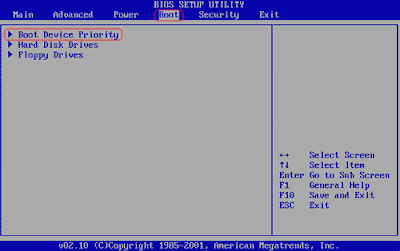
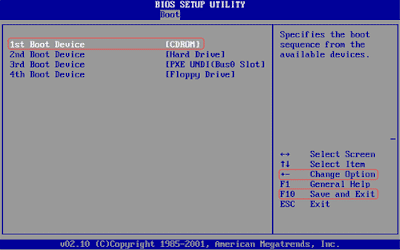
4. Insert the Windows Vista CD into the CD-Rom. Restart the machine.
Windows Vista Installation Process
When the OS CD to work, the GUI of Windows Vista will appear on the screen when windows recognize and menonfigurasikan all the hardware used by computers.
1. Windows will run automatically as a blank hard drive and will load the file. This will take a long time.
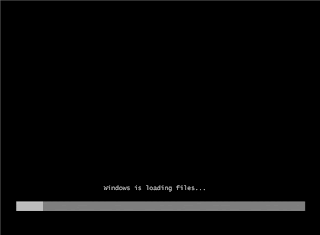
2. After that will start installing the windows vista.
3. Furthermore, the selection of languages. Choose the language in common: Home. Then setting the Time and currency format.
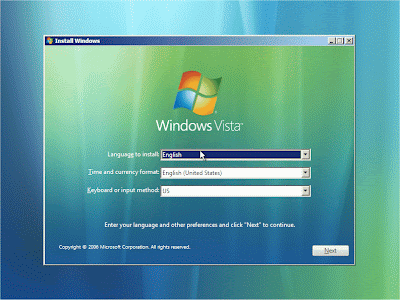
4. Select your keyboard type, then click NEXT.
5. Furthermore, the Install now screen will appear and then click Windows will do some process.
6. Input type your product key (the strip will be added automatically), then click Next.
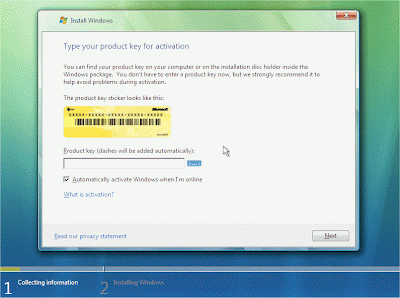
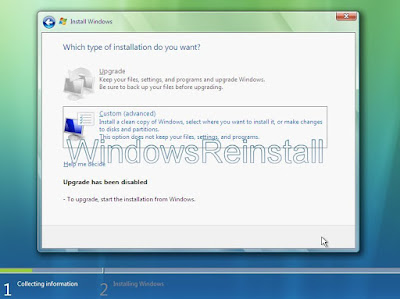
7. On the next screen will appear reading about the license, read and confirm that you accept the license. Tick the box "I accept the license terms". then click Next.
8. Now it will ask which type of installation you want to do. If you want upgrade your current Windows click "Upgrade" or if you want to reinstall Windows click the costum.
9. Next you will choose a location that is installed. Select the drive, then click on "Drive Options" to setup and Format the drive. Or you can click "Next and windows will use max space. Yang available.
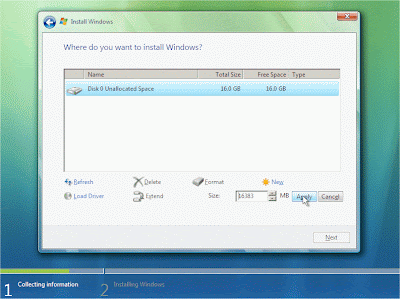
10. Select the number of the size you want (type boxed bag.size) after that click apply and finally next.
11. done that, click the format to format the drive.
12. You will receive a warning, click OK to continue.
13. After the formatting process is complete, click next to continue.
14. After that the installation process will begin and will take a very long time.
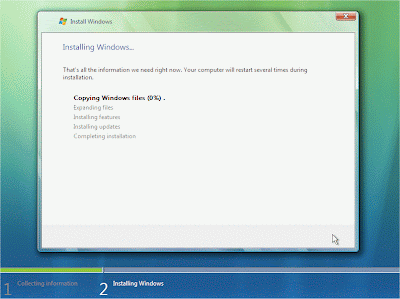
15. After all the process is complete, Windows will restart automatically.
16. Reboot the computer starts.
17. If you get this message, then you have left a floppy disk in the floppy or hard drive not in BIOS boot sequence correctly. Remove or repair the disk BIOS then press "Any key" to continue. Then wait to open a new window.
18. Windows will boot for the first time.
19. Windows will continue installing until installation is complete.
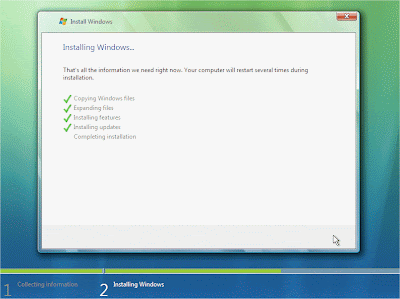
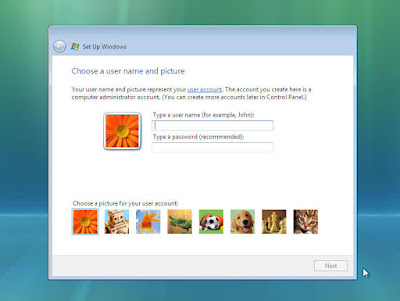
21. The next section is a section set up windows, input your name and password. After that click next.
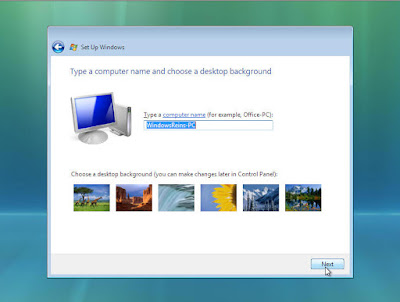
22. Further charging your computer name and desktop background. When finished click next.
24. Now is the selection method of protecting your windows. Select and click to proceed.
25. Next you need to check the time zone is correct and also the time and date. Time and date of the BIOS, but "Time Zone" should be set. Click on the "Down arrow" at the end of the box.
26. Select your desired time zone after his click next.
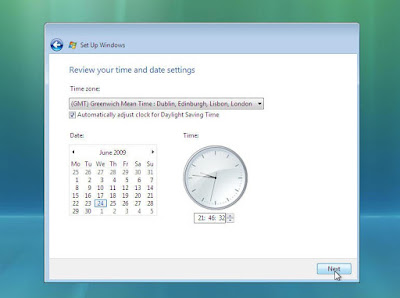
27. Now all the necessary information has been collected. Click Start to continue.
28. Now windows will check the performance of your computer and will load it.
29. Furthermore, the login screen will appear, fill the ID that you entered previously.
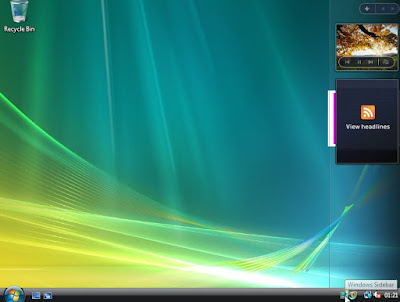
30. Now prepare your Windows desktop.
31. Desktop is ready to use, but it takes some time to check all drivers and other software.
32. Completed
Friday, October 3, 2014
Download Try Windows 8

Computer userve heard of Microsofts latest operating system is still in early stages of development. And demonstration of circulating rumors on the internet, I managed to collect a variety of information and conjecture about what Windows 8 will be like. My conclusion from these rumors are:
Metro will be based UI style.
Recommended specs are proved to be lower than Windows 7.
Desktop to be "just" an application where Windows 8 running desktop-based applications.
With that conclusion I began to wonder what about the evolution of Windows. After reading the status of a college friend on Facebook, I am looking for fun if Windows 8 is already starting to circulate. I also finally found one iso file for the x86, although still called Windows Developer Preview, aka Windows 8 pre-Alpha build a new alias early stage (I estimate probably still going to release a new 2012 or 2013). Well, curious as to what would be the Windows 8? Heres my review of Windows 8.

Metro Style UI
Windows 8 will be based Metro UI style that has been carried by the Windows Phone 7. This makes Windows 8 is more optimized for touch-based interactions. Homescreen will be met by the tile-tile applications. Homescreen is also at the same time will take over the start menu. Start menu itself actually exist. But it will only contain the Start, Search, Share, Device, Settings. The way led to the start menu also no longer click the Start icon on the taskbar, but by bringing the mouse pointer (or mentapping when using the touch screen) bottom left corner of the screen. In addition to the start menu, it also displays the network indicator, battery, and when (date and time). On the homescreen, tile-tile is not just a shortcut to launch applications such as the usual icon on the desktop / startmenu on the previous windows, but can also be a widget to display certain information depending on the application.

Windows 8 Recommended specifications
It was the custom Windows development, the new level, the more severe the required hardware specifications (such as from Windows XP to Windows 7 where XP is capable of operating at 512MB RAM and the new 7 is capable of operating in the range of 1GB + +). But for Windows 8, proved to be the required specifications will be reduced because other than designed for PCs, according to Microsoft, Windows 8 is also well designed for the tablet and the rumors of Windows 8 will also be designed to operate on the ARM architecture (x86/x64 architecture not only made by Intel and AMD), although certainly not all applications can run on ARM unless the developer is concerned memporting application for Windows 8 version of the ARM.

Did you want to download windows 8free? Do not worry about its authenticity andguaranteed authentic original from Microsoft. It is rather strangebecause if you think about Windows 8 is not official release. But this timemy friend was able to taste the original windows8 preview ofMicrosofts consumer version.
This means that it is still not final release, the consumer version ofthe preview is intended to provide feedback tothe consumer feedbackalias. Learning from the past and then, usually windows willgive a free license for cutomer who managed to find a bug orlack slit windows8.Ok, my friend can also enjoy thefree download version of Consumer Windows 8 Preview was counted quitepretty, free of charge.
Ok Please DownloadWindows 8 Freehere:
This means that it is still not final release, the consumer version ofthe preview is intended to provide feedback tothe consumer feedbackalias. Learning from the past and then, usually windows willgive a free license for cutomer who managed to find a bug orlack slit windows8.Ok, my friend can also enjoy thefree download version of Consumer Windows 8 Preview was counted quitepretty, free of charge.
Ok Please DownloadWindows 8 Freehere:
64-bit (x64) Download(3.3 GB)
Sha 1 hash — 1288519C5035BCAC83CBFA23A33038CCF5522749
32-bit (x86) Download(2.5 GB)
Sha 1 hash — E91ED665B01A46F4344C36D9D88C8BF78E9A1B39
Sha 1 hash — 1288519C5035BCAC83CBFA23A33038CCF5522749
32-bit (x86) Download(2.5 GB)
Sha 1 hash — E91ED665B01A46F4344C36D9D88C8BF78E9A1B39
Thursday, October 2, 2014
Speed up Windows 7 Performance

How to speed up performance tips Windows 7? Windows 7 comes with a variety of features that are more visual and interactions that you would not in Windows Vista and Windows XP. Here is how to accelerate the performance of Windows 7:
1. Speed up booting Windows 7
Click Start> type "msconfig" into the search field programs and files> Enter
Click on the tab "Boot" and click "Advanced Options"
Check the option "Number of processors" and indicate how much you want a processor with that of the PC (usually 2, 4 or 8).
Click "OK" and "Apply"> Reboot
2. Accelerate the process of shutting down Windows 7
Click Start> type regedit> enter.
Go to HKEY-LOCAL_MACHINESYSTEMCurrentControlSetControl
Right-click on the WaitToKillServiceTimeout and change the value decreases.
Click OK> Restart
3. Run Faster Switching Window
Click Start, type "system properties performance"
Click the Visual Effects tab
Uncheck "Animate windows Pls minimize and maximize" and click OK.
4. Disable Search Index in Windows 7
Click Start> type services.msc in the Start Search box> to enter.
Search Windows Search, and then right click and disable the service.
5. Disable Start-Up Program Tools
Click Start> click Run.
Type msconfig> click OK.
Demonstrated that the System Configuration Utility> Click on Startup
On the Startup tab, you will see a green box, checklist box will (v) are marked. Research each item is by looking at the Command. Try the Green Checklist (v) to remove unwanted items from programs. The programs with the command C: Windows should be left as original condition.
After a number of items in uncheck (eliminating v in the box), then click Apply and / or OK. A confirmation if you want to start?
After the restart, on-screen confirmation will appear again, and select "option for not showing this dialogue every time you restart your computer"
6. Optimization Rules Display (Display Settings)
Click Start, then right-click My Computer> Properties
Choose Advanced> On the perfomance, click Settings
Appears Performance Option and Visual Effects
Click Custom, and please list some items to check on the box, and lets continue to check the following items (v).
Use visual styles on windows and buttons
Show shadows under menus
Show shadows under mouse pointer
Show translucent selection rectangle
Show contents of window dragging Pls
Slide taskbar buttons
Use common tasks in folders
Use drop shadows for icons labels on the desktop
Click Apply> OK> Restart
7. Speed Up File Browsing
Click Start, and then double-click My Computer
Click on the Tools menu (top)
Choose Folder Options
Folder appears, and select View
Remove the check mark (v) the automatic search for network folders and printers check box
Click Apply> OK.
Slow computer performance could have made users lazy to linger in front of the computer. Conversely computer with excellent performance make the users will be comfortable to work in front of the computer. 7 tips to the performance of Windows 7 acceleration is a useful and good luck with the practice to be. After following these tips hopefully fast of windows 7. Your experience in optimizing Windows 7 may be of additional tips to be more perfect, you can write suggestions or tips other tricks in the comments section.
Subscribe to:
Posts (Atom)