Showing posts with label Reset. Show all posts
Showing posts with label Reset. Show all posts
Tuesday, September 30, 2014
How to Hard Reset LG G Flex Using Buttons
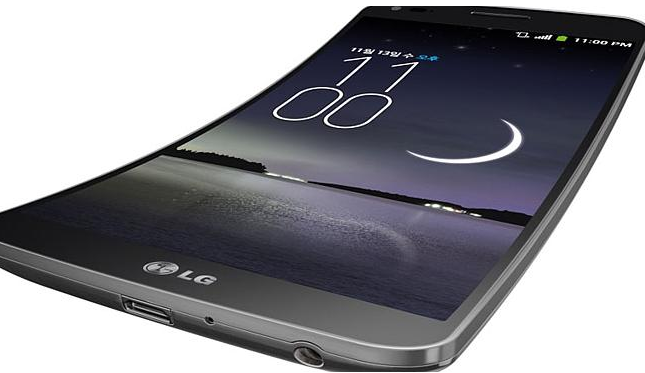
Restoring the default settings or factory reset your LG G Flex will delete all your existing files. It is recommended to backup your important files on your computer before attempting to reset your device.
1. Switch off your device. If it is frozen, remove your battery and insert it again.
2. Press and hold the following keys: Volume Down Key + Power/Lock Key.
3. Release the keys as soon as Recovery mode is displayed.
4. Press the Volume Down Key to scroll to wipe data/factory reset. Then press the Power/Lock Key to select it.
5. Press the Volume Down Key to scroll to Yes -- delete all user data. Then press the Power/Lock Key to select it.
6. The phone will perform a factory reset.
7. Make sure that reboot system now is highlighted and press the Power/Lock Key to make the selection and reboot your phone.

Monday, September 29, 2014
How to Backup and Factory Reset Alcatel One Touch 993D
Luckily in Alcatel One Touch 993D you can backup your phone settings and other application data to Google Servers before wiping all the data on your phone. But if you want to erase all the content on your phone, then there’s no need for you to backup your data.
How to Activate the Backup Function:
• Tap on the Menu key from Home Lcd.
• Select Settings > Backup & reset > Back up my data.
• Then mark the checkbox.
How to Factory Reset:
• Tap on the Menu key from Home Lcd.
• Select Settings > Backup & reset > Factory data reset.
• Then mark the checkbox.
If you are unable to turn on your Alcatel One Touch 993D, then you may need to do the hard reset. Press and hold the Volume up key and the Power key at the same time until the Lcd light up. This process will also factory reset your device.
Sunday, September 28, 2014
How to Factory Reset Hard Reset HTC One Evo 3D
Resetting HTC One Evo 3D on Settings:
- Slide the Notifications panel open, and then tap the Gear Icon or Settings.
- Select SD & Phone storage.
- Tap Factory data reset.
- If you want to delete all your files, then tap Erase everything.
These steps is also helpful when your HTC One Evo 3D is unresponsive or frozen and theres no way to access the settings.
- First, press and hold the Volume Down button, and then do the same way on the Power button.
- Hold the two buttons until the three Android images appear on the Lcd.
- Release the button when the three Android images appear and press Volume Down.
- Tap on Factory Reset, and then press the Power Button to confirm.
How to Factory Reset Hard Reset LG Lucid 2
Restoring the default settings or factory reset your LG Lucid 2 will delete all your existing files. It is recommended to backup your important files on your computer before attempting to reset your device.
The steps below are the instructions on how to factory reset your LG Lucid 2:
Step 1. On your HomeLcd, tap on MENU icon.
Step 2. Select Settings, then select Backup & Reset option.
Step 3. Under Personal Data, tap on Factory Data Reset.
Step 4. Read warning carefully before tapping the Reset phone.
Step 5. If you want to proceed in resetting your device, tap on Erase Everything to confirm the Factory Reset.
Now, you just need to wait while your device is resetting. It should reboot itself and you will have a new start on your LG Lucid 2.
If your LG Lucid 2 is unresponsive, then you may need to do the Hard Reset.
- Press and hold the Power button/Lock Key and Volume Down Key at the same time.
- Hold these buttons until you see the Factory Hard Reset.
- Press the Power Key continue or the Volume Keys to cancel.
- Press the Power Key again to confirm the factory reset, or the Volume Keys to cancel.
- Wait for a few minutes while your phone performing the hard reset. It will turn on in a while.
Saturday, September 27, 2014
Canon iP2770 Blink 16x Reset
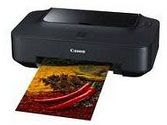
This time will be sharing experience about Canon iP2770 Blink Orange 16x. This case may be quite confused if youve never experienced it. OK lets see together.
Early indications:
When the printer is turned on appears to be OK, but after the print command,
then the Canon iP2770 will Blink Orange 16x. This case occurred well after you reset the Printer iP2770. The following image is displayed on the monitor screen:
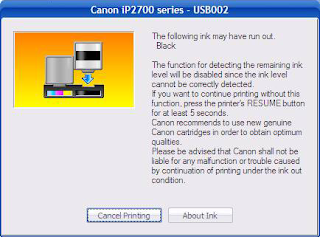
How to troubleshoot a Canon iP2770 Blink Orange 16x:
- Run the command print, you can print just about anything, and then it will blink iP2770 16x.
- If it appears Canon iP2770 Blink Orange 16x, meaning the color cartridge iP2770 need reset (experience the run out).
- The solution: press the resume button somewhat longer until the green light flashes, then release.
- If the Canon iP2770 Blink Orange 16x again, meaning black cartridge also need reset (experience the run out)
- The solution is the same: press the resume is rather long until green light flashes, then release.
- Printer Canon iP2770 Blink Orange 16x your print command will print and iP2770 will return to normal.
This often happens when the cartridge out finished refilled then installed again, also occurs after you perform a reset on ip2770.
Good luck.
Subscribe to:
Posts (Atom)